Streaming platforms are among the services we use most in our daily lives. Music is everywhere—it accompanies us throughout the day and often serves as the soundtrack to our evenings. In the process, we accumulate vast amounts of data. But what happens when your music streaming platform no longer suits you? When it no longer meets your needs? That’s when switching becomes essential. Spotify and YouTube Music are among the most popular services. How do you transfer playlists and data from Spotify to YouTube Music in 2026?

And here are clear, straightforward answers to all these questions!
Key takeaways
- Transfer your Spotify playlists, favorite tracks, albums, and artists to YouTube Music by connecting both accounts in Soundiiz and selecting the content you want to migrate.
- Spotify to YouTube Music transfers preserve your original library while matching songs across both streaming catalogs, with unmatched tracks clearly reported at the end of the process.
- The free version of Soundiiz lets you transfer as many Spotify playlists as you want, one at a time. You can select up to 200 tracks from each, even if it contains more, while Premium removes this selection limit for larger YouTube Music migrations.
- After your Spotify to YouTube Music transfer is complete, your playlists are immediately available in YouTube Music, and additional Soundiiz features like Sync can keep them updated across both platforms.
AI-generated summary
Estimated reading time: 8 minutes
Transfer playlists and data from Spotify to YouTube Music in 2026: why would you do it?
Spotify is the undisputed leader in music streaming. Always at the forefront of innovation—investing millions upon millions of dollars into its algorithms and features—the Swedish platform attracts more customers than any of its competitors. For the moment, its market-leading position seems unassailable.
However, in recent years, other players have made their voices heard and positioned themselves as serious alternatives. This is especially relevant given that Spotify has been no stranger to “scandals” in recent months.

From criticism regarding its use of AI and price hikes—practices also adopted by many competitors—to a per-stream payout policy deemed too low and controversies surrounding its founder, the platform with the green logo has faced its fair share of backlash. And while the trend remains minor compared to its massive user base, many customers have jumped ship.
Youtube Music’s arrival
One of their favorite destinations? YouTube. Google’s music streaming service took a long time to establish itself in the market, but once it did, it never looked back. One of its key assets is the ability to bundle a YouTube Premium subscription with YouTube Music, offering a combined package that lets users listen to unlimited music and watch YouTube videos ad-free.
In terms of price, YouTube is hard to beat. But that’s not its only advantage! With a massive catalog, one of the most precise search functions on the market, and a robust algorithm, YouTube Music is a favorite among millions of users.

To learn more about the platform, you can read our review; it will help you determine exactly whether or not YouTube Music meets your needs—and, by extension, whether you should actually leave Spotify!
If you are convinced that switching is the right move, we explain below how to transfer your playlists and data from Spotify to YouTube Music. You’ll see, nothing could be simpler thanks to Soundiiz!
Transfer playlists and data from Spotify to YouTube Music in 2026: step-by-step
First, you should know that Soundiiz was created with one goal in mind: to make managing your streaming platforms easier.
By providing tools tailored to your needs, Soundiiz aims to address any issues or situations you might encounter. This is also why our services offer a free version, making them accessible to everyone.
The transfer process described below allows you to transfer up to two hundred items at once using the free version of Soundiiz.

If you wish to transfer more data, you can subscribe to one of our no-commitment Premium plans. This means you can easily perform a single transfer and then cancel your subscription. We also prioritize transparency and flexibility so you can enjoy everything our services offer with complete peace of mind.
Now that that’s clear, let’s get to the transfer!
Transfer playlists and data from Spotify to YouTube Music in 2026
The first step is to log in to your Soundiiz account.
On your homepage, make sure both the source and destination platforms are connected to your Soundiiz account. If they aren’t, click the purple “+” button labeled “Connect” on the left side of the screen.

Next, look for your platform in the list of available services. A window will appear asking you to connect Soundiiz to the account you previously created on that platform.
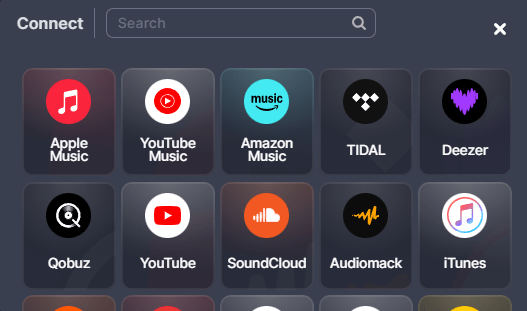
For our services to work, you must have an existing account on both the platform you are leaving and the one you are joining.
Once the connections are established, you will see a small green light appear at the bottom right of your streaming platform logos on the left side of the homepage.

You are now ready to transfer everything!
In the “Tools” section on the left side of the screen, click “Transfer.” A window will open. The “Select Source” section corresponds to the platform you wish to leave and from which you want to transfer your data. The “Select Destination” section corresponds to the platform you wish to move to.
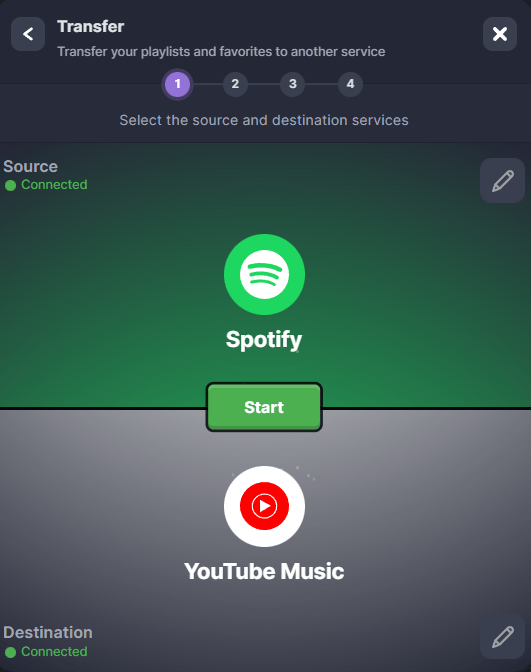
Next, click the “Start” button to begin the transfer.
You can transfer everything!
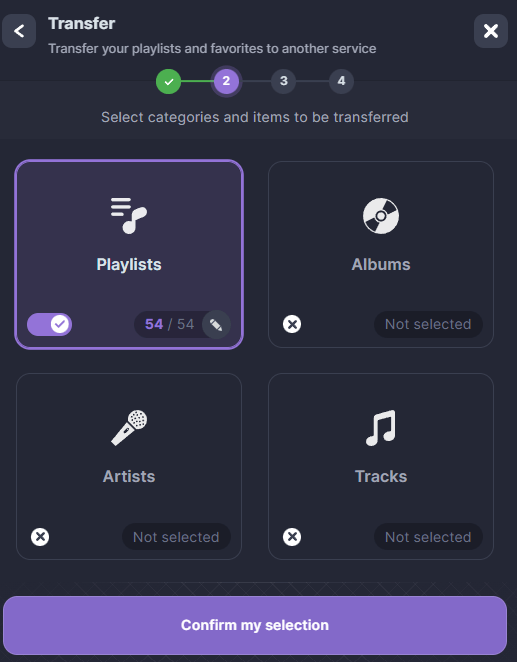
Four options are available. You can choose to transfer your playlists, saved albums, followed artists, or saved songs. You can select just one of these categories, several of them, or all of them at once. Simply click the box corresponding to what you wish to transfer, then click the purple “Confirm My Selection” button.
A new window will open, informing you that we will not delete any data during the transfer process; however, for the transfer to be successful, the items you wish to transfer must exist on your destination platform. Then, click the purple “Begin the transfer!” button.
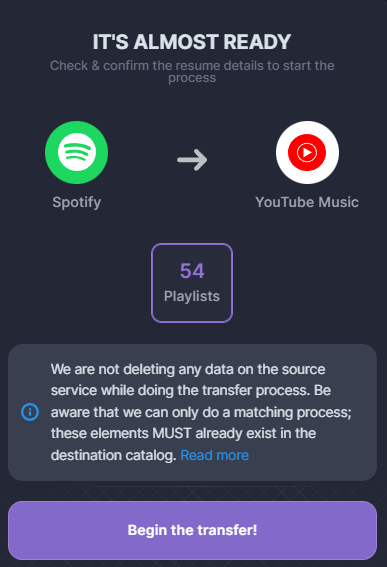
A transfer batch is then automatically created. To view its progress, click “My Batches” in the “Automation” section of your dashboard.
Next, click the batch you just created to view detailed information—such as its progress, transfer success rate,number of errors, and their specific descriptions.

Once the transfer is complete, the line corresponding to your batch will display “Finished” in green. You will also receive an email confirming that everything has been transferred.
You are all set! Your data has now been transferred. To verify that everything is correct, log in to your new platform and check that everything has been successfully moved over.