Managing your streaming data can be a daunting task, and some of you may be hesitant to take the necessary steps. This is one of the reasons Soundiiz exists: to make your life easier and improve your daily use of music streaming platforms. Today, we’re unveiling an underrated feature: playlist import! How to import playlists from other streaming platforms to Spotify? Follow the guide and let Soundiiz take the hassle out of the process.

Why would you want to import playlists from other streaming platforms to Spotify?
Imagine you’re a Spotify user, but you find the playlists available on Apple Music, Deezer, TIDAL, Amazon Music, YouTube Music, or Qobuz more interesting. Or at least, you’re particularly interested in one of them, but you’re frustrated that you can’t enjoy it on your Spotify account.
You wouldn’t want to leave Spotify just for a single playlist or even several. How to bring together the best of both worlds? By using Soundiiz. Our services let you import playlists from other platforms directly by pasting their URLs and transferring them to your Spotify account with Soundiiz. Importing playlists via Soundiiz lets you optimize your platform usage while leveraging others’ content without needing an account on their platform.

It seems almost magical, but it’s straightforward to set up. Importing data is also helpful if you have a file (.txt, .csv, .xspf, and other formats) that you would like to transform into a listenable playlist. A friend may have sent you their playlists in this file format. Alternatively, you may have a data backup (created via Soundiiz) stored elsewhere that you now want to import. Our import tool allows you to respond to both scenarios. All your files are importable if the format is compatible.
You can even import your data from iTunes if you’re one of the few people still using this service.
Soundiiz covers all your needs!
Import playlists from other streaming platforms to Spotify for free: is it possible?
We’re all the same: we love it when the things we need are free. And that’s why Soundiiz has introduced a free option to import your data. But be careful! With the free version, you can only import 200 tracks.
If you want to import more, no problem: choose one of our two Premium options, the features of which we detail right here. This will give you maximum flexibility in your choices and also allow you to do just about everything possible with a music streaming platform.
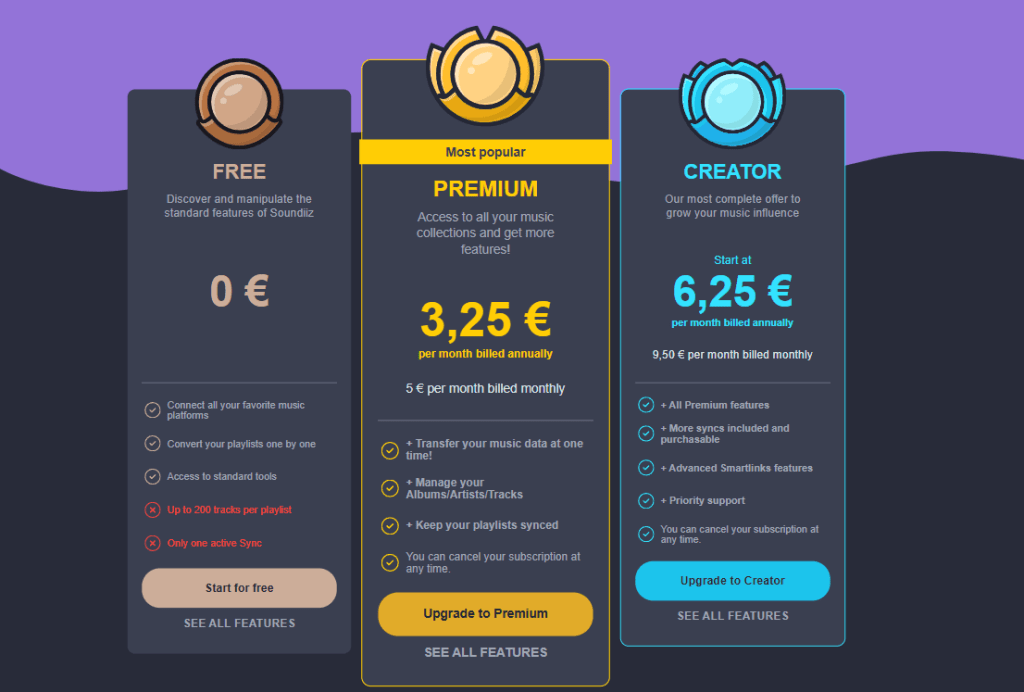
With our Premium options, there are no limits! Soundiiz opens its doors to you, and you’ll see what’s hidden inside is quite interesting. Please note that if you only want to import more than two hundred items once, our subscriptions are non-binding. You can sign up for a Premium subscription and cancel immediately after completing the process. We told you: flexibility, flexibility, and flexibility!
How to import playlists from other streaming platforms to Spotify, step-by-step
The first step, as you might expect, is to create a Soundiiz account and have a Spotify account.
Once you’ve created your Spotify account, the next step is to connect it to your Soundiiz account. This is a simple process that ensures seamless playlist importation.
To do this, click on the “Connect Services” button on the left side of your screen.

Then, select the platform you want to connect to, click its icon, and follow the instructions.
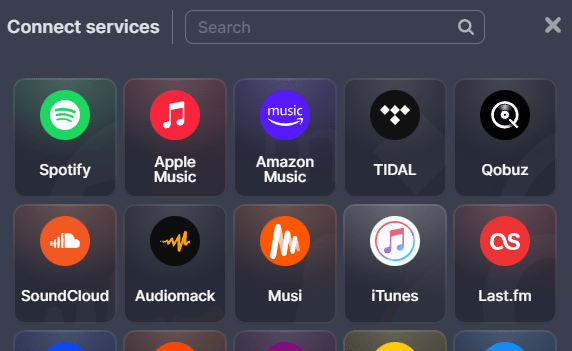
You are now ready to begin the import process.
On the homepage, in the top-right corner, click the “Import Playlists” button.

Then, choose the file you want to import from the available options.
Here, we’ve chosen to show you how to import a playlist from a URL (“From Web URL”). Click on this section.
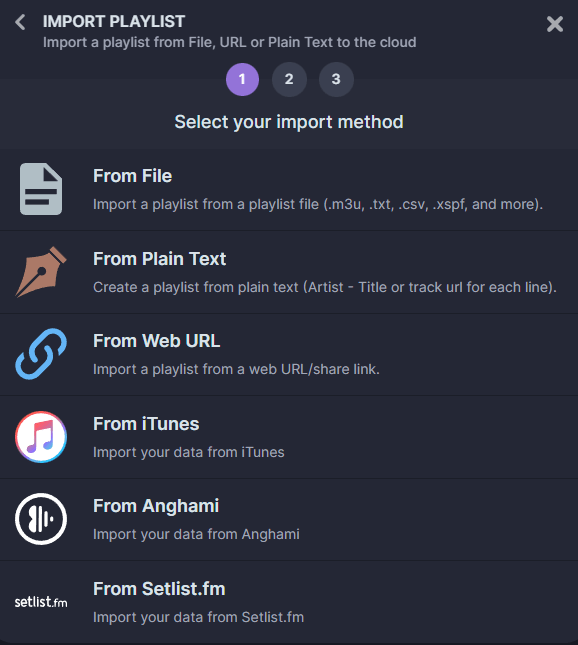
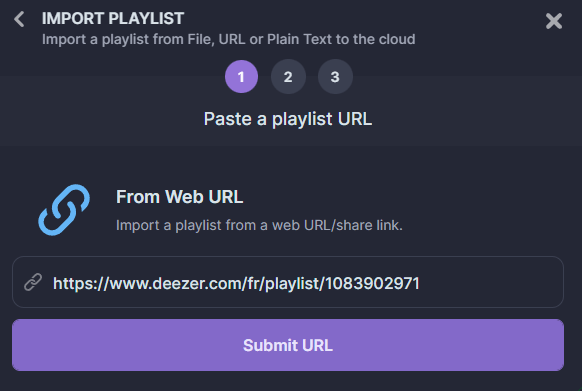
For this example, we’ve decided to copy the link to Deezer’s Poptop playlist, which can be accessed without an account on the platform.
Once the link is copied, paste it into the rectangular box provided and click “Submit URL.”
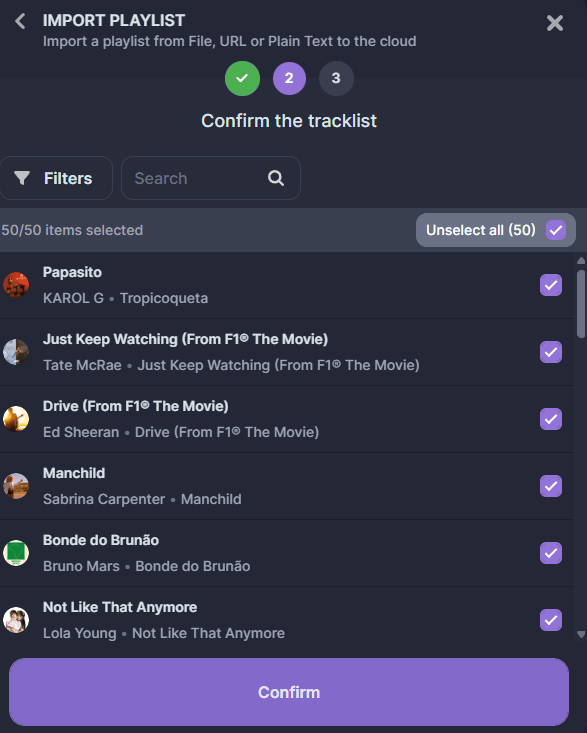
Note that you will have the option to deselect certain songs if you don’t like them. Then click “Confirm”.
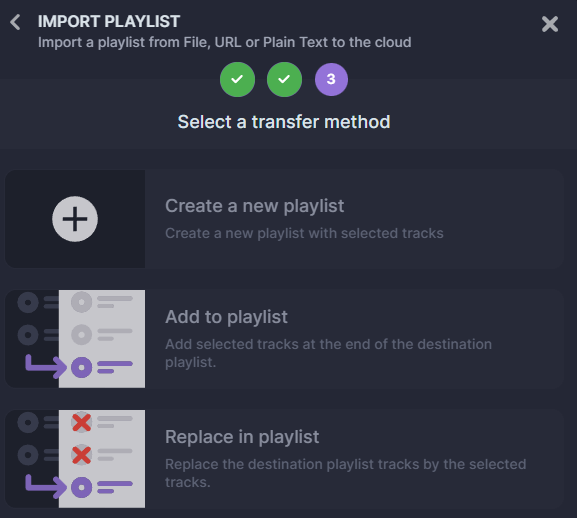
In the next window, you can adjust your preferences. You can create an entirely new playlist based on the URL you just copied, which will be added to your Spotify account. Or you can add the songs from the copied playlist to an existing playlist on your Spotify account. Or you can replace the songs in an existing playlist with the ones you just selected. Here, we choose “Create a new playlist.”
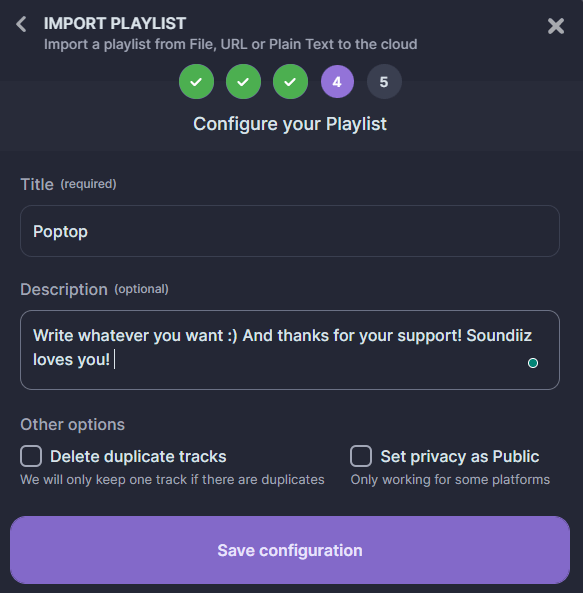
The window that appears allows you to enter the information you want to customize the playlist. Then click “Save configuration.”
Then, select where you want to import this playlist. If you’ve successfully connected your destination platform, it will appear in the list below.
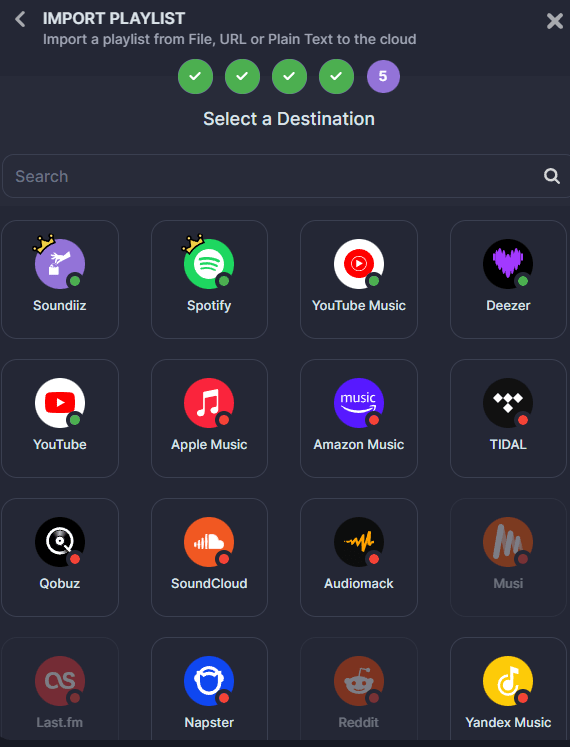
The import has begun! A window saying “Conversion successful” will appear after a few seconds. And, as if by magic, if you check your Spotify account, you’ll see that the new playlist is on your account!
It will also appear, of course, on your Soundiiz account in the “Playlists” category of the “Your Library” section. You can manage it by deleting certain songs, and the changes you make will be reflected in your playlist.
You’re all set!
What else can you do with Soundiiz?
Importing is cool, but exporting is a blast, too! With Soundiiz, you’ll never have to worry about losing your streaming data again: you can save and export everything! The goal? Store your playlists and all the data you’ve spent years or months building in a secure location where you can easily find them again. Soundiiz allows you to download your playlists in several different formats, including .txt or CSV. You’re then free to store them on your Drive or share them with your friends and family.
They, in turn, can import this data using the procedure described above. This creates a virtuous circle. With Soundiiz, data can be easily manipulated, modified, shared, exported, and imported. It’s also possible—and this is our flagship feature, the one that made our reputation—to transfer all your data from one platform to another. Imagine you’re a Spotify user and want to try Apple Music. Soundiiz lets you connect these two platforms to ensure optimal data transfer.
This way, you can retrieve all your Spotify data on your Apple Music account. All without losing any of it!
You may also want to try our SmartLink creation tool, sync your playlists, or explore our Artificial Intelligence tool. By entering prompts, tags, or lines of text, you can generate playlists of songs or artists that match your preferences. And since we make sure all our features are compatible with each other, these playlists can then be directly imported into your Soundiiz account. Or onto the streaming platform you use!

By enabling synchronization at the rate of your choice, you can also enjoy new playlists directly on your streaming platform without lifting a finger.
And to discover everything Soundiiz has to offer, click here!